
dsh-side-chat
UI & ExperienceAHGGG/dsh-side-chat
Codex-style Side Chat for DeepSeek Harness — select text, ask follow-up questions in a focused side conversation, and keep the main chat uninterrupted.
- codex
- codex-desktop
- dsh
- dsh-plugin
- side-chat
- sidechat
Verification and compatibility
This section shows evidence collected by the catalog. Undeclared information is labeled as unknown.
- Current-version compatibility
- Verified on the catalog Harness version
- Declared Harness range
- Not declared
- Declared platforms
- Not declared
- Profiles
- web
- Build approval
- Unknown
- Permissions
- Not declared
- External services
- Not declared
- Telemetry
- Unknown
This is not a security endorsement. Review source, permissions, and configuration before installing.
View evidence and scope
Verification covers only the named source, version, and Harness environment. It does not guarantee future compatibility.
@ahggg/dsh-side-chat@0.6.2- The manifest and static structure passed checks; a runtime load check has not completed.
README
dsh-side-chat
Ask a focused follow-up about selected text without leaving your current conversation in DeepSeek Harness Desktop or Web.
Install
Use a Side Chat version that matches your DSH runtime:
| Side Chat | DeepSeek Harness runtime |
|---|---|
@ahggg/dsh-side-chat@1.0.2 | 0.2.0-rc.2 |
@ahggg/dsh-side-chat@1.0.1 | 0.2.0-rc.1 |
The instructions below use Side Chat 1.0.2 with DSH 0.2.0-rc.2. If you are staying on DSH rc.1, keep Side Chat 1.0.1 until you upgrade the runtime.
DeepSeek Harness Desktop
In DeepSeek Harness Desktop 0.2.0-rc.2, open the plugin installation dialog and enter the complete package spec:
@ahggg/dsh-side-chat@1.0.2
Install it, then restart DeepSeek Harness Desktop. Use the Desktop app's plugin manager for Desktop installations; the CLI commands below target the Web profile.
Web (dsh web)
Install the matching DSH CLI if needed, then install the pinned plugin version:
npm install --global @deepseek-ai/dsh@0.2.0-rc.2
dsh plugin --profile web add @ahggg/dsh-side-chat@1.0.2 --save-exact
Start DSH from the project you want the agent to work in:
cd E:\path\to\your-project
dsh web --port 3080
Open the URL printed by DSH. The plugin loads automatically in the Web client.
Local linked development
When dsh plugin --profile web list shows the plugin coming from a link: workspace, DSH loads the committed lib/client.js, not src/. Rebuild after switching branches or changing client source, then restart the dsh web process:
pnpm install --frozen-lockfile
pnpm build
Use Side Chat
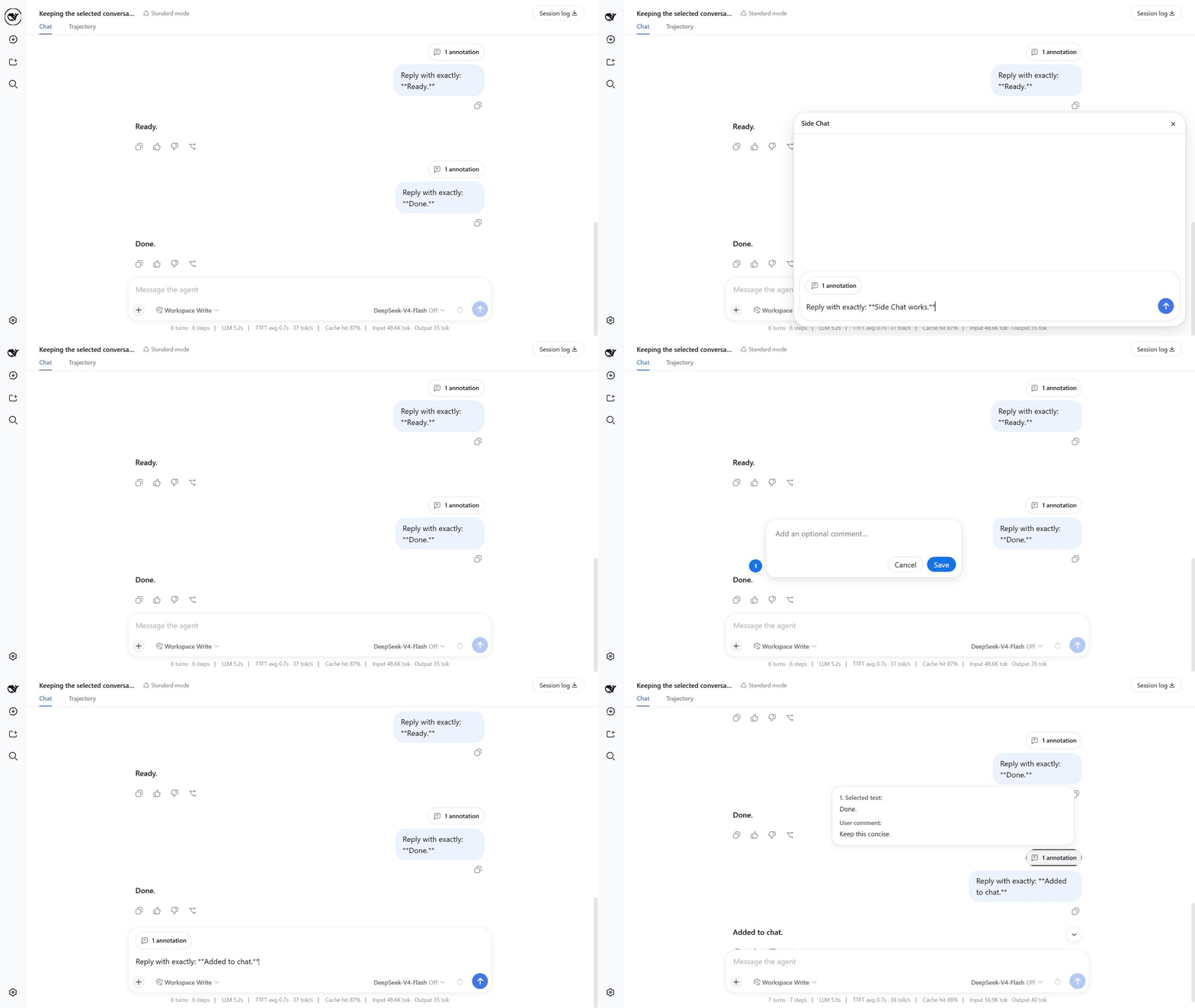
On phones and tablets, long-press text in a completed message to select it. The Side Chat action bar appears below the selection when there is room, leaving the browser's native selection bar above it. Use Add to chat, More details, or Ask in side chat directly from the touch action bar.
- Complete at least one turn in the main conversation.
- Select text inside one completed user or assistant message.
- Click
Add to chatto add an optional comment before attaching the passage to the main composer,More detailsto send an explanation request immediately, orAsk in side chatto write a focused question. - When writing your own message or question, press
Enterto send it. - After a Side Chat reply settles, click
Add to conversationto attach that focused discussion to the main composer as one conversation reference. - Click
×, or pressEscwhile focused inside the Side Chat panel, when you are done. Escape in another composer or menu does not close Side Chat.
Useful details:
Shift+Enterinserts a newline.- Use the model control beside Send, then Effort, to choose the model's thinking level. You can change it while a reply runs: that reply keeps its original settings, while the accepted choice applies to the next reply and is remembered for future Ask in side chat and More details requests in this client. It does not change the main conversation.
- After clicking
Add to chat, pressEnteror clickSaveto keep the annotation. Click outside the comment box or clickCancelto discard it. Add to chatkeeps any existing draft text and can collect multiple numbered passages, each with its own optional comment, in one annotation capsule.Add to conversationcaptures the Side Chat's user/assistant history, preserves the main draft, and refreshes the existing reference instead of duplicating it when clicked again.- The input grows with its content and becomes scrollable at its maximum height.
- The composer has one action button: Send when idle, Stop while generating. It returns to Send after the reply finishes or stops, keeping any follow-up draft. Text entered while a send is pending stays in the composer.
- Assistant replies use DSH's native Markdown rendering.
- Hover over
N annotationsto preview every selected passage and its comment. - Before sending, hover over the annotation capsule and click
×to remove it; after sending, the same capsule appears above the user message. - Your first Side Chat message displays the selected passage as one annotation and your question as plain text, not internal XML.
- The main conversation stays visible. No child Session is created.
What happens to the conversation
Ask in side chat and More details use direct, streaming model calls through DSH's configured provider. On the first send, the plugin captures a read-only text snapshot of the parent conversation through the selected message's completed turn. Later parent prompts are excluded, and this context stays fixed for follow-ups. Opening the draft alone makes no model call.
Side Chat keeps its own temporary message history in memory. It does not fork, copy, create, or archive a DSH Session, run an Agent, or write a Session event log. It has no tools, command execution, or file-editing capability. Parent reasoning and image/file attachment bytes are omitted; historical tool text is only reference material. The initial model uses the saved Side Chat choice, or the selected parent turn's configuration. Changing it affects only subsequent Side Chat replies.
Closing the panel, reloading/disconnecting the client, or unloading the plugin cancels active work and discards the temporary discussion. Host records also expire after 30 minutes idle. To keep a discussion, use Add to conversation, then send the parent draft to store the reference in the parent history. Adding a reference alone does not send it. References already added to the parent draft are separate from the temporary panel and survive its closure.
The text snapshot and Side Chat history are sent to the model on each request, so normal provider token usage still applies; avoiding Session copies does not eliminate context tokens or guarantee cache reuse. Archived Sessions created by older plugin versions are not automatically deleted.
Current limitations
- A selection must stay inside one completed message.
- This is a text-only, read-only discussion, not a second Agent. Attachments, tools, Steer, and
/sideare not supported. - Closed or expired discussions cannot be reopened. There is no “keep as normal Session” action.
- Context is limited to 2,097,152 characters and rejected rather than silently truncated. Each question is limited to 65,536 characters; each reply (including reasoning) to 262,144 characters. A discussion permits at most 64 questions and 2,097,152 question/reply/reasoning characters. Output limits produce an explicit error and keep only the displayed partial reply.
- Model requests time out after two minutes. Provider-specific context/output limits may be lower.
Upgrade or remove
Desktop
After upgrading Desktop to DSH 0.2.0-rc.2, update or reinstall Side Chat through the app's plugin manager using this exact package spec, then restart the app:
@ahggg/dsh-side-chat@1.0.2
If Desktop on DSH 0.2.0-rc.2 still reports that @ahggg/dsh-side-chat@1.0.1 requires rc.1, it is loading the previous plugin version. Update the Desktop plugin to 1.0.2 and restart the app. Desktop and Web profiles have separate plugin installations; update the appropriate profile and keep DSH's compatibility check enabled.
To uninstall, remove Side Chat through the Desktop app's plugin manager.
Web
To upgrade an existing Web installation to Side Chat 1.0.2 with DSH 0.2.0-rc.2, install the matching CLI and re-add the exact plugin version. add --save-exact replaces the installed package version and keeps the dependency pinned:
npm install --global @deepseek-ai/dsh@0.2.0-rc.2
dsh plugin --profile web add @ahggg/dsh-side-chat@1.0.2 --save-exact
Restart dsh web and reload the browser after updating. Remove the Web-profile plugin with:
dsh plugin --profile web remove @ahggg/dsh-side-chat
License
MIT


