
dsh-custom-provider-settings
Models & Datasupersealwqas/dsh-custom-provider-settings
DeepSeek Harness 第三方 API 与自定义模型设置插件:支持请求头、User-Agent、模型列表、图像输入和思考等级 | WebUI plugin for third-party APIs and custom models with request headers, image input, and reasoning levels
- deepseek-harness
- dsh
- dsh-plugin
- model-provider
- multimodal
- openai-compatible
- plugin
- reasoning
- reasoning-effort
- web-ui
README
DSH Custom Provider Settings Plugin
English | 中文
A WebUI plugin for DeepSeek Harness that adds global model request headers and extends user-defined custom providers with per-provider headers, image-input declarations, reasoning-level settings, and native system-role compatibility controls. It loads through the DSH plugin system and does not modify Harness source files.
Global request headers apply to every channel and model, including official DeepSeek, built-in third-party, and custom providers. Per-provider headers, model capabilities, and compatibility controls remain limited to providers carrying the Custom tag.
Features
- Configure
User-Agentand additional HTTP request headers for each custom provider. - Configure global
User-Agentand additional headers in the WebUI for every model request. - Fill either global or per-provider
User-Agentfields from common presets while retaining free-form input. - Apply the same custom headers to normal model requests and Fetch available models.
- Declare each custom model as text-only or text-and-image capable.
- Configure the reasoning levels exposed for each model and map every level to the value sent to its API.
- Set a provider-level default reasoning level.
- Configure the reasoning parameter format for
openai-completionsproviders. - Manage DSH's native
compat.supportsDeveloperRoleswitch for each compatible custom OpenAI provider whose endpoint rejectsdevelopermessages. - Restore the original Harness request-header behavior by clearing the global headers.
Demo
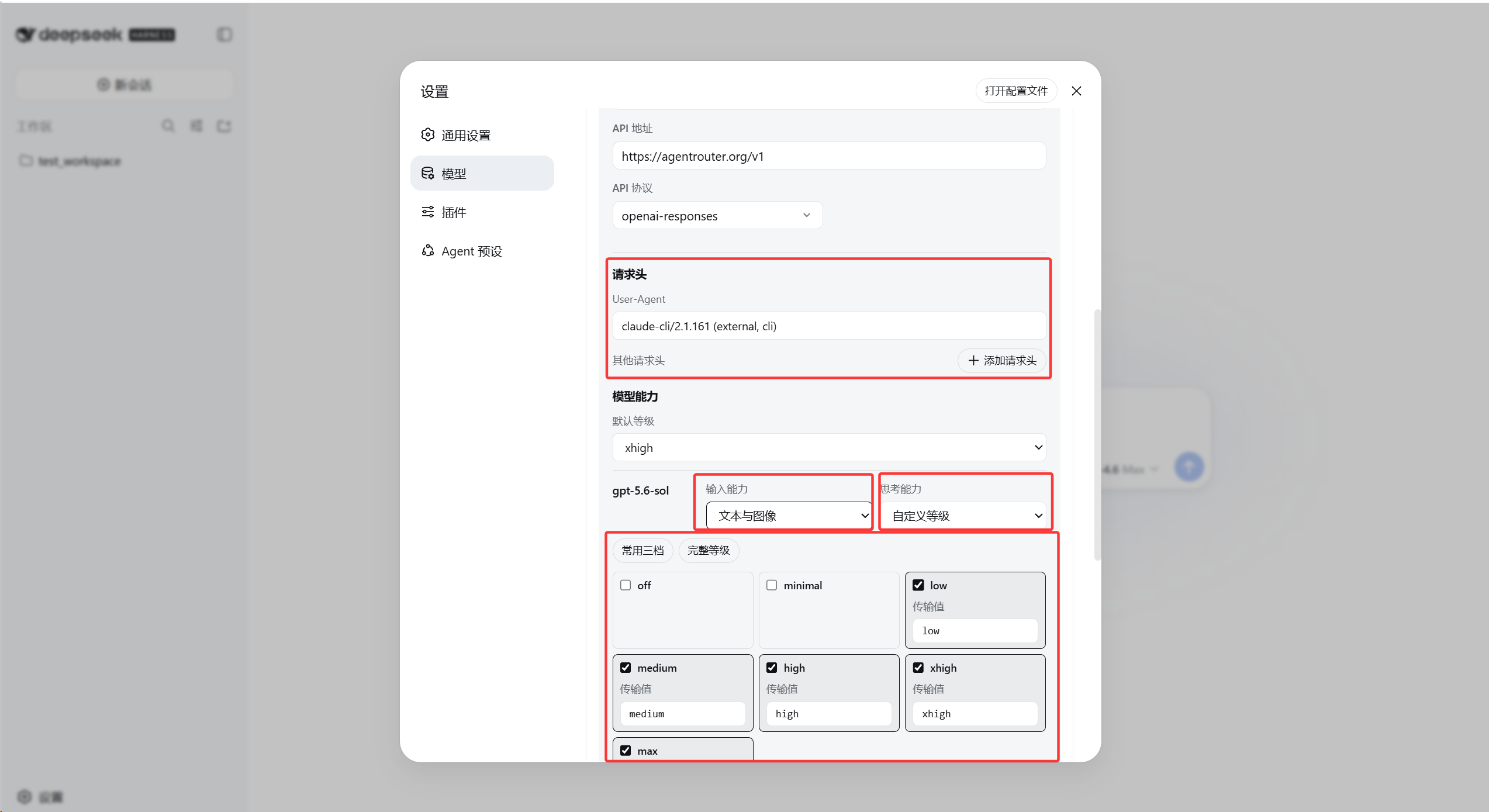
Custom provider settings
The plugin inserts request-header and model-capability fields into the existing custom-provider form. The highlighted areas show User-Agent, additional headers, image input, the default reasoning level, and per-model reasoning mappings.
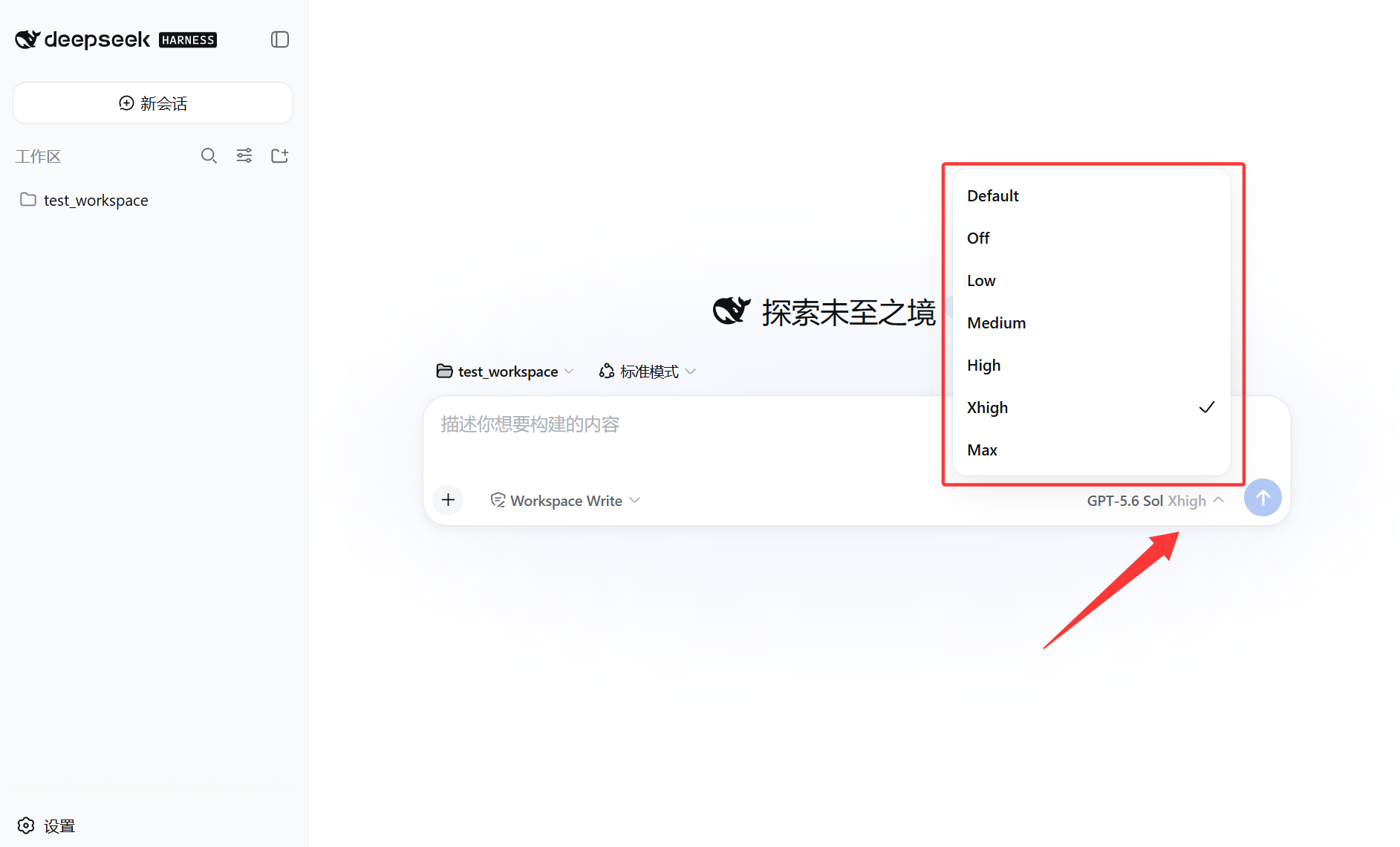
Reasoning selector
Enabled reasoning levels appear in the conversation composer. The example exposes Default, Off, Low, Medium, High, Xhigh, and Max, with Xhigh selected.
Installation
Prerequisites
- Node.js
^22.19.0or>=24.0.0; Node.js 24 LTS is recommended. - Git, used to install the plugin from GitHub.
- pnpm.
dsh plugininvokes pnpm in the Web profile directory to manage plugins. - DeepSeek Harness
0.1.1-rc.2or a compatible release with thewebprofile and nativesupportsDeveloperRolesupport.
Check the environment in PowerShell:
node --version
npx --version
git --version
corepack enable
pnpm --version
If corepack enable fails because of insufficient permissions, run it once from an administrator PowerShell or follow the pnpm installation guide.
Stop the running WebUI before installing, upgrading, or removing the plugin, then restart it when the command completes.
Option 1: Install a release TGZ (recommended)
This installs a tested, fixed version that does not change with the main branch. To install v0.5.0:
The
v0.5.0URL becomes available after this reviewed version is published as a GitHub Release.
npx --yes -p @deepseek-ai/dsh dsh plugin --profile web add https://github.com/supersealwqas/dsh-custom-provider-settings/releases/download/v0.5.0/dsh-custom-provider-settings-0.5.0.tgz
Start the WebUI after installation:
npx --yes -p @deepseek-ai/dsh dsh web
The WebUI listens on http://127.0.0.1:3080 by default. If dsh is installed globally, the shorter dsh plugin ... and dsh web forms are equivalent.
Option 2: Install from the GitHub main branch
This installs the current main branch and is suitable for users who want the newest changes immediately. On first use, npx downloads the official DSH NPM package and its dependencies:
npx --yes -p @deepseek-ai/dsh dsh plugin --profile web add github:supersealwqas/dsh-custom-provider-settings
Start the WebUI after installation:
npx --yes -p @deepseek-ai/dsh dsh web
Option 3: Install from a local checkout
Use this method when changing or debugging the plugin. Create a TGZ package in the repository and install it into the Web profile:
New-Item -ItemType Directory -Force .\dist
npm pack --pack-destination .\dist
npx --yes -p @deepseek-ai/dsh dsh plugin --profile web add .\dist\dsh-custom-provider-settings-0.5.0.tgz
npx --yes -p @deepseek-ai/dsh dsh web
The dist directory and TGZ files are ignored by .gitignore and are not uploaded to the repository.
Upgrade
Stop the WebUI and run the matching add command again. DSH updates the installed plugin without requiring a separate removal. For a TGZ installation, replace the version and filename in the command with the target release. Restart the WebUI afterward.
Uninstall
npx --yes -p @deepseek-ai/dsh dsh plugin --profile web remove dsh-custom-provider-settings
Restart the WebUI to remove the plugin controls and behavior. Settings already stored in settings.yaml, including global headers and provider extension fields, are not deleted automatically.
Usage
- Open Settings > Models.
- In the Global model request headers area at the top of the model list, enter a
User-Agentor other headers. Leave it empty to keep Harness defaults. - If needed, edit a provider carrying the Custom tag that already contains a model, or choose Add provider > Add a custom provider and enter its models.
- In the inserted per-provider Request headers area, configure headers for that custom provider; matching local values take precedence over global values.
- For a compatible custom OpenAI provider, enable
Use the system rolewhen its endpoint rejects thedeveloperrole. An existing nativesupportsDeveloperRole: falsesetting appears as an already-checked box. - Under Model capabilities, choose each model's input and reasoning capabilities. Select Text and images only when both the API and model support image input.
- Use the original Apply or Create provider button. The plugin saves its fields after the Harness form succeeds.
- Start a new conversation and select the model; global headers are applied automatically.
Fetch available models uses the request-header values currently entered in the same form, including values that have not been saved yet. This allows model discovery to work with endpoints that require a particular User-Agent or another custom header.
Global headers are also applied to model discovery. The merge order is Harness defaults, global headers, then custom-provider headers, so matching local values have the highest priority.
Both global and per-provider User-Agent fields include these presets:
claude-cli/2.1.161 (external, cli)claude-cli/2.1.161claude-code/1.0.0claude-code/0.1.0Kilo-Code/1.0
Selecting a preset replaces the current text field value. The field remains editable, so any other User-Agent can be entered manually.
Verify image input
- Set the model's input capability to Text and images and save the provider.
- Start a new conversation with that model.
- Upload a PNG or JPEG containing a unique string such as
VISION-7392. - Ask the model to return only the string visible in the image.
A correct response confirms that Harness accepted the attachment and the endpoint processed it. This setting declares model capability to Harness; it cannot add vision support to an API or model that does not already provide it.
System-role compatibility
The checkbox is a WebUI layer over DSH's native pi-ai compatibility setting. The plugin does not intercept or rewrite the JSON request body.
- Checked: writes
compat.supportsDeveloperRole: falsefor the current custom provider. - Unchecked: removes only
supportsDeveloperRole, restoring DSH/pi-ai automatic detection. - Scope: applies to every model under that provider, without changing other providers.
- Preservation: leaves neighboring fields such as
thinkingFormatandsupportsReasoningEffortunchanged.
The control appears only for custom OpenAI protocols whose native pi-ai compatibility type supports this field.
Stored settings
The following example shows the actual namespace hierarchy in settings.yaml:
dsh-custom-provider-settings:
  globalHeaders:
    User-Agent: my-global-client/1.0
    X-Client-Name: all-models

llm-pi-ai:
  providers:
    agdsf:
      headers:
        User-Agent: my-client/1.0
        X-Client-Name: my-client
      reasoning: high
      compat:
        thinkingFormat: deepseek
        supportsDeveloperRole: false
      models:
        - id: example-model
          input: [text, image]
          reasoningEfforts:
            low: low
            medium: medium
            high: high
Header values are stored as ordinary text in settings.yaml. Keep API keys and other secrets in the Harness credential field instead of custom headers.
Clearing the global headers removes the global override and restores the original Harness request-header behavior. Clearing a provider's headers only removes that provider's extra override.
Troubleshooting
The plugin settings do not appear
Confirm that the plugin is installed in the web profile and restart the WebUI after installation. The global header area appears at the top of the Models list; a custom provider without models has no editable model-capability settings.
Fetch available models still fails
Confirm the Base URL, API key, and API protocol first, then check every User-Agent or additional header required by the endpoint. The plugin includes unsaved header values from the active form in the discovery request.
Reasoning levels or image upload are missing in a conversation
Save the provider, start a new conversation, and select the model again. Reasoning levels must be enabled for that model, and image upload requires the model to be declared as Text and images.
A third-party DeepSeek endpoint rejects the developer role
Edit the compatible custom OpenAI provider, enable Use the system role, save it, and start a new conversation. The setting is scoped to that provider; the official DeepSeek provider and other custom providers keep their existing request roles.
The endpoint works, but the checkbox looks unchecked
Open the provider editor after restarting the WebUI. The checkbox reads the effective native llm-pi-ai.providers.<provider>.compat.supportsDeveloperRole value. If the YAML already contains false but the UI remains unchecked, force-refresh the page so the browser loads the current plugin client.
Compatibility and limitations
- The current release targets the public plugin interfaces and WebUI in DeepSeek Harness
0.1.1-rc.2. - Global headers are injected into every model channel; custom-provider image, reasoning, compatibility, and per-provider header controls mount only on providers reported by Harness with
declared: true. - The plugin does not modify official or built-in provider model configuration, although global headers still apply to their API requests.
- Model names, context windows, maximum output values, and other fields owned by the original form are preserved when plugin settings are saved.
- The current Models page has no provider-form plugin slot. This plugin locates the original accessible labels and mounts its React controls at runtime, so a future Harness form change may require a plugin update.
- The plugin does not patch DeepSeek Harness source files.
Development and verification
npm test
node --check client.js
npm pack --dry-run
Attribution
The reasoning-settings client logic is adapted from JuneLearn/dsh-reasoning-settings under the MIT License.
License
MIT. See LICENSE. The license retains the copyright notices for this repository and its adapted upstream source.